Troubleshooting
Laptop Overheating and Loud Fan: How to Fix It and When to Get It Serviced
A hot laptop with a fan that never stops roaring is usually struggling to get rid of heat, most often because of dust, blocked vents or worn thermal paste. Here's how to fix the common causes safely, and when it's time for a service.
In this guide
Is your laptop actually overheating?
Laptops get warm, and fans speed up during demanding tasks. That’s normal. Signs of a real overheating problem include:
- the fan runs loudly all the time, even when you’re only browsing or doing email
- the base or keyboard is too hot to touch comfortably
- the laptop slows down under load (it reduces its own speed to cool down)
- it shuts down suddenly, especially during games, video calls or video editing
- a fan that rattles, clicks or grinds
Why laptops overheat
- Dust and lint build up in the fan and in the fins of the heatsink, blocking airflow. This is the most common cause, and pets and carpet make it worse.
- Blocked vents. Using the laptop on a bed, couch, pillow or your lap covers the air intakes underneath.
- Dried-out thermal paste. The paste between the processor and the cooling system wears out over the years, so heat transfers less effectively.
- Background processes or malware keep the processor busy, even when you aren’t doing anything demanding.
- A failing fan spins slowly, makes noise or stops altogether.
- Hot rooms. A laptop running in a hot room on a Melbourne summer day has less headroom before it overheats.
Quick fixes you can try now
1. Give it room to breathe
Use the laptop on a hard, flat surface such as a desk or table, never on bedding or cushions. A simple laptop stand raises the back and improves airflow. Keep vents clear of walls, books and cables.
2. Check what’s working the processor
- Windows: press Ctrl + Shift + Esc to open Task Manager and sort by CPU. If something you don’t recognise sits at high usage, investigate it, or run a full scan with Windows Security.
- Mac: open Activity Monitor and check the CPU tab.
Closing heavy programs and unnecessary browser tabs can bring the fan noise down straight away.
3. Keep software and drivers up to date
Manufacturers release updates that can improve fan control and power management. Install Windows or macOS updates, and use your manufacturer’s support app (for example Dell SupportAssist, HP Support Assistant, Lenovo Vantage or MyASUS) to check for driver and BIOS updates.
4. Check the power settings
High-performance modes make laptops run hotter. On Windows 11, Settings → System → Power & battery → Power mode lets you choose Balanced. Some manufacturer apps also offer a quiet or cool fan mode.
How to clean a laptop fan safely
Cleaning the vents from the outside is something most people can do at home.
You’ll need: a can of compressed air (or an electric air duster) and a soft brush.
- Shut down the laptop completely and unplug the charger. If the battery is removable, take it out.
- Find the vents. They’re usually on the underside, the sides or the back hinge.
- Blow short bursts of air into the vents at an angle, keeping the can upright. Short bursts work better than one long blast, and holding the can upside down can spray liquid propellant.
- Stop the fan spinning freely. If you can see the fan blades through a vent, gently hold them still with a toothpick or plastic tool so the air doesn’t spin the fan too fast and wear the bearing.
- Brush away loosened dust around the vents.
Avoid:
- vacuum cleaners, which can create static that damages components
- poking metal objects into the vents
- liquids or cleaning sprays
Opening the laptop
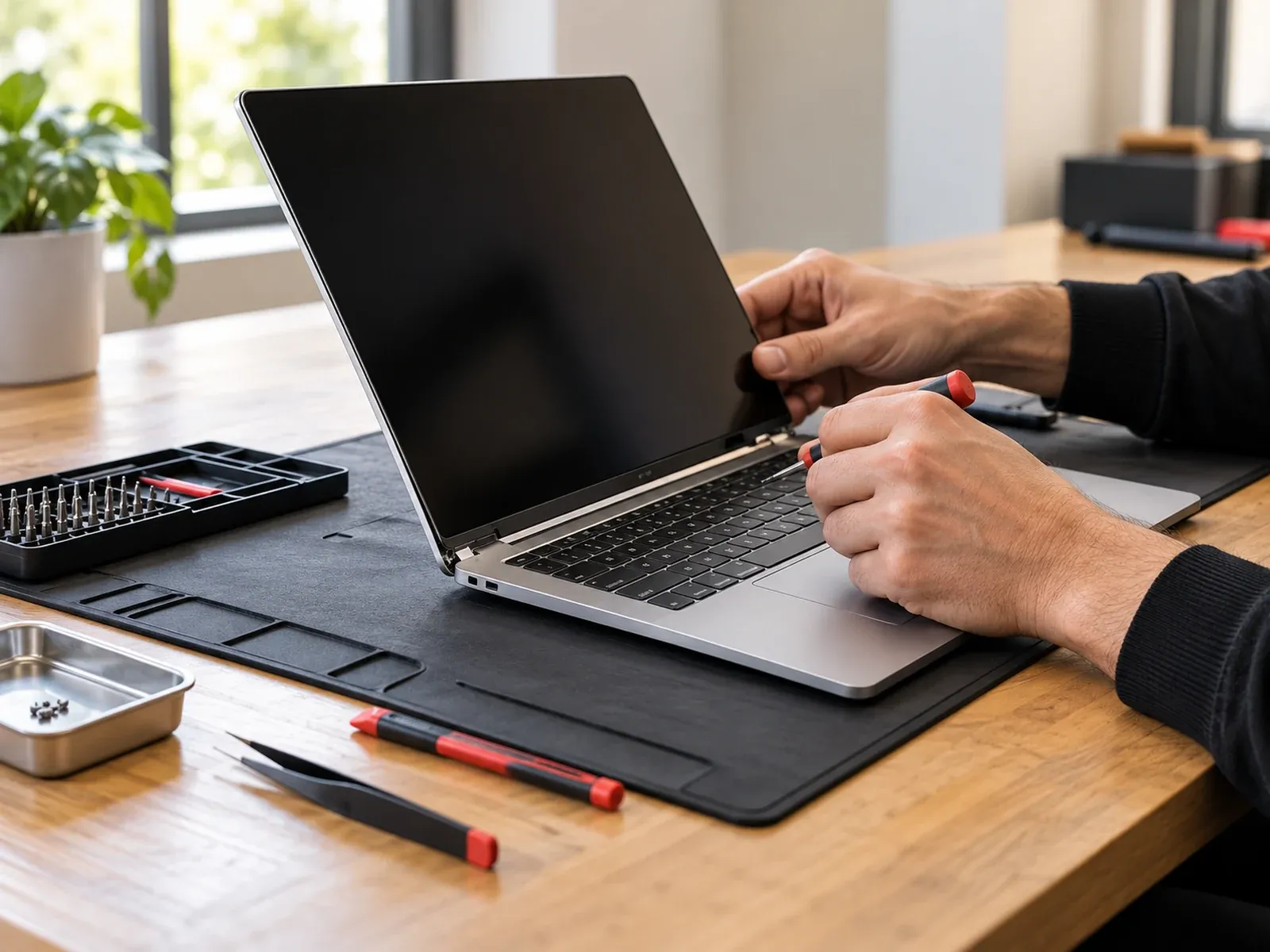
Removing the bottom cover lets you clean the fan and heatsink properly, but it’s not for everyone. Screws strip easily, plastic clips break, and some manufacturer warranties can be affected. If you do open it:
- disconnect the battery inside before touching anything
- avoid static (work on a hard surface and touch something metal first)
- don’t pull on ribbon cables
Replacing thermal paste means removing the cooling system from the processor. It’s best left to a technician, because a poor job can make overheating worse.
When to get your laptop serviced
Book a service if:
- the fan is still loud and the laptop still hot after cleaning the vents
- the fan rattles, grinds or clicks, or doesn’t spin at all
- the laptop shuts down from heat or throttles badly during normal use
- it’s more than a few years old and has never been cleaned inside
- you’d rather not open it yourself
What a service involves depends on the cause, so we diagnose the problem first. Depending on what we find, it may include:
- cleaning the fan and heatsink
- replacing worn thermal paste
- replacing a failing fan
- fixing software that keeps the processor busy
We’ll explain what’s needed and the cost before any work goes ahead.
Overheating laptop service in Melbourne
Computer Squad diagnoses and fixes overheating, noisy fans and cooling problems for laptops and desktop PCs in Melbourne. We’ll check what’s causing the heat, explain the options, and give you a quote before any work goes ahead.
Request a laptop repair or call 0402 442 841. For desktops and gaming PCs, see desktop and gaming PC repairs.
If your laptop shuts down from heat, smells like burning, or the battery looks swollen, stop using it and get it checked.
Need hands-on help? See Laptop repairs or request a visit.