Repairs
How to Check Your Laptop Battery Health (and When to Replace It)
Laptop batteries wear out gradually, holding less charge each year. Windows and macOS can both tell you how worn your battery is. Here's how to check, what the results mean, and when a replacement makes sense.
In this guide

Why battery health matters
Every laptop battery loses capacity as it ages and goes through charge cycles. A battery that once lasted a full workday might eventually manage only an hour or two, or shut the laptop down unexpectedly. Checking battery health tells you whether short battery life is down to wear, which a new battery fixes, or something else, like background software.
How to check battery health on Windows
Windows has a built-in battery report.
-
Right-click the Start button and choose Terminal (or search for Command Prompt).
-
Type the following and press Enter:
powercfg /batteryreport -
Windows creates a file called battery-report.html and tells you where it saved it. That’s usually your user folder, for example
C:\Users\YourName\battery-report.html. -
Open the file in your web browser.
What to look at in the report
- Design capacity: how much charge the battery held when new.
- Full charge capacity: how much it holds now.
- Cycle count: how many full charge cycles it has been through (not all laptops report this).
Divide the full charge capacity by the design capacity to see roughly how much of the original capacity is left. For example, 36,000 mWh ÷ 50,000 mWh = 72%.
Further down, the Battery capacity history section shows how capacity has changed over time. Battery life estimates shows how long the battery has been lasting.
Manufacturer tools
Most manufacturers include a battery check in their support apps, often with extra detail and battery-care settings:
- Dell: MyDell, Dell Power Manager or SupportAssist (depending on the model)
- HP: HP Support Assistant or HP PC Hardware Diagnostics (battery test)
- Lenovo: Lenovo Vantage
- ASUS: MyASUS
- Acer: Acer Care Center
How to check battery health on a Mac
- Open the Apple menu → System Settings → Battery.
- Next to Battery Health, click the ⓘ button. Your Mac will show:
- its condition (Normal or Service Recommended)
- on many models, its maximum capacity as a percentage of new
To see the cycle count, hold Option, click the Apple menu, choose System Information, then select Power.
What the numbers mean
- Above about 80% of original capacity: normal wear. The battery is generally fine to keep using.
- Around 80% or below: noticeable wear. Many manufacturers treat this as the point where a battery has significantly aged, and you’ll likely notice shorter battery life.
- “Service Recommended” (Mac) or a warning from your manufacturer’s app: the battery should be replaced.
Battery life also depends on what you’re doing. A healthy battery drains quickly during video calls, gaming or heavy multitasking, so check the health figures before assuming the battery is the problem.
Signs your laptop battery needs replacing
- Battery life is much shorter than it used to be.
- The laptop shuts down suddenly, even when the battery shows charge left.
- The battery percentage jumps around or gets stuck.
- It only works while plugged in.
- It won’t charge, or charges very slowly. (Check the charger first. See laptop won’t turn on.)
- The battery or base gets unusually hot.
- The case is bulging, the trackpad is lifting or the laptop rocks on a flat surface. This is a swollen battery. Stop using it.
If your battery is swollen
A swollen lithium-ion battery can be dangerous.
- Stop charging and using the laptop. Shut it down and unplug it.
- Don’t press on, puncture or try to remove the battery yourself.
- Keep the laptop on a hard, non-flammable surface, away from heat.
- Get the battery replaced as soon as possible.
- Old batteries shouldn’t go in household bins. Take them to a battery recycling drop-off point.
How to make your battery last longer
- Avoid heat. Don’t leave your laptop in a hot car or in direct sun, and keep the vents clear.
- Use battery-care settings. Many laptops can limit charging to around 80% when you’re mostly plugged in, for example in MyDell or Dell Power Manager, Lenovo Vantage and MyASUS. Macs use Optimised Battery Charging automatically.
- Don’t leave it at 0%. Charge it before storing it, and don’t let it sit flat for long periods.
- Keep software up to date. Updates can improve power management.
Laptop battery replacement in Melbourne
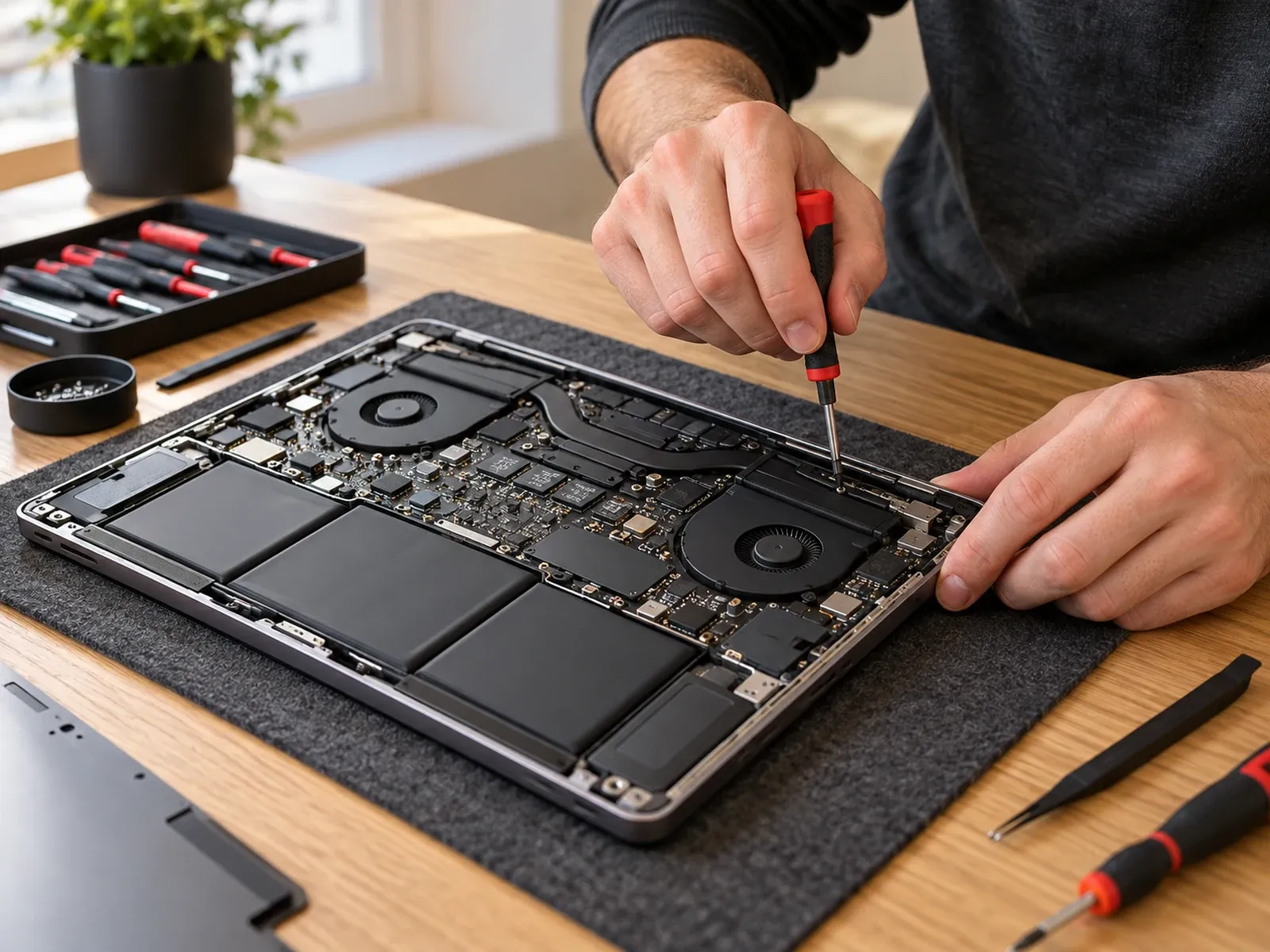
If your battery is worn, swollen or no longer holding a charge, a replacement can give an otherwise good laptop a new lease of life. Computer Squad replaces batteries for Windows laptops and MacBooks in Melbourne.
We’ll confirm the battery’s condition, tell you which replacement is available for your model (genuine or compatible), and give you a quote before any work goes ahead. Replacement batteries may carry their own supplier warranty, and our repair work is covered by our 90-day workmanship warranty.
Request a battery replacement or call 0402 442 841. For MacBooks, see Mac and MacBook repairs.
A swollen battery is a safety risk. If the trackpad is lifting, the case is bulging or the laptop no longer sits flat, stop using and charging it and get the battery replaced.
Need hands-on help? See Laptop repairs or request a visit.