Troubleshooting
Laptop Won't Turn On? 7 Fixes Before You Call a Repair Shop (Dell, HP, Lenovo, ASUS, Acer)
A laptop that won't turn on is usually a power, battery or display problem, and some of those can be fixed at home in a few minutes. Work through these checks in order before booking a repair.
In this guide
- First, work out what “won’t turn on” means
- Fix 1: Check the charger and the power point
- Fix 2: Leave it on charge for 30 minutes
- Fix 3: Unplug everything else
- Fix 4: Do a hard reset (power drain)
- Fix 5: Check whether it’s actually a display problem
- Fix 6: Let it cool down
- Fix 7: Think about recent spills, drops or updates
- Brand-specific checks
- Still won’t turn on? Signs it needs a repair
- Get it diagnosed in Melbourne
First, work out what “won’t turn on” means
Press the power button and watch closely for a few seconds. What happens tells you where to look:
- Nothing at all. No lights, no fan noise, nothing on screen. This points to power: the charger, battery, power button or motherboard.
- Lights or fan noise, but a black screen. The laptop is running but not displaying. This is often a screen, graphics or sleep problem rather than a power fault.
- It starts, then switches off. This can be a failing battery, overheating, or a fault that triggers a safety shutdown.
- The manufacturer logo appears, then it stops or loops. The hardware is powering on, but Windows isn’t starting. That’s a software or storage problem, not a power one.
Keep that in mind as you work through the fixes below.
Fix 1: Check the charger and the power point
It sounds obvious, but a faulty charger is one of the most common reasons a laptop seems dead.
- Plug the charger into a different wall socket you know works, and skip power boards for now.
- Check that the cable is pushed fully into the laptop, and that any detachable cable between the brick and the wall is seated properly.
- Look for a light on the charger or near the charging port. No light can mean the charger has failed.
- Inspect the cable for kinks, fraying or a damaged plug.
- For USB-C laptops, try another USB-C port on the laptop. Some models only charge from particular ports. Use a charger with enough wattage for your laptop; phone chargers usually aren’t.
If you have a compatible spare charger, test with that. If the laptop springs to life, you’ve found the problem.
Fix 2: Leave it on charge for 30 minutes
A battery that has run completely flat, or has been sitting unused for months, may need time on charge before it has enough power to start. Plug in the charger, leave the laptop alone for at least 30 minutes, then try again.
Fix 3: Unplug everything else
Disconnect USB drives, docks, external monitors, SD cards, printers and anything else plugged in. A faulty accessory can occasionally stop a laptop from starting or make it hang during startup. Try powering on with only the charger connected.
Fix 4: Do a hard reset (power drain)
A hard reset clears leftover electrical charge and resets the hardware that controls power. It doesn’t delete your files.
- Unplug the charger and disconnect all accessories.
- If your laptop has a removable battery, take it out. Most modern laptops have a built-in battery; leave that in place.
- Press and hold the power button for 15–30 seconds.
- Reconnect the charger (and battery, if you removed it) and press the power button normally.
Some brands have their own version of this. See the brand sections below.
Fix 5: Check whether it’s actually a display problem
If you can hear the fan, see keyboard lights, or the Caps Lock light toggles when you press it, the laptop may be on with a blank screen.
- Press the screen brightness up key a few times. Brightness may have been turned all the way down.
- Connect an external monitor or TV with HDMI or USB-C. If a picture appears there, the problem is the laptop’s screen or its connection, not power.
- On Windows, press Windows + Ctrl + Shift + B. This restarts the graphics driver, and you’ll hear a short beep if Windows is running.
- The laptop may be stuck in sleep or hibernation. Hold the power button for 10 seconds to force it off, then turn it on again.
Fix 6: Let it cool down
Laptops shut themselves down to protect against overheating, and may refuse to start until they cool. If it was hot to the touch, or had been sitting in a car or in direct sun on a Melbourne summer day, leave it in a cool room for 30 minutes before trying again. Repeated heat shutdowns are worth looking into; see our guide to laptop overheating and loud fans.
Fix 7: Think about recent spills, drops or updates
- Liquid. If anything was spilt on the laptop, don’t keep trying to turn it on. Unplug it, switch it off if you can, and get it assessed. Powering on a wet laptop can turn a repairable problem into a much bigger one.
- Drops. A knock can loosen internal connections or damage the screen, battery or motherboard.
- Updates. If it stopped working during a Windows or BIOS update, don’t interrupt it again. Leave it plugged in and seek help if it won’t recover.
Brand-specific checks
The fixes above apply to every laptop. These extra steps are specific to each brand. If your model differs, check the manufacturer’s support website for exact instructions.
Dell
- Power drain: Dell recommends the hard reset in Fix 4 (sometimes called draining “flea power”). Unplug, remove the battery if it’s removable, hold the power button for about 15–20 seconds, then reconnect and power on.
- Built-in diagnostics: if the laptop powers on but won’t start Windows, restart it and tap F12 at the Dell logo, then choose Diagnostics. This runs Dell’s pre-boot hardware test.
- Light codes: if the power or battery light blinks in a pattern (for example amber and white), it’s a diagnostic code. Note the pattern and look it up on Dell’s support site for your model.
HP
- Hard reset: with the charger and accessories unplugged, hold the power button for about 15 seconds, then reconnect the charger and start the laptop.
- HP PC Hardware Diagnostics: if it powers on, turn it off, then switch it on and tap Esc repeatedly until the Startup Menu appears, then press F2. HP’s built-in tests check the battery, memory, storage and more.
- Blinking Caps Lock or Num Lock lights: a set number of blinks on startup is an HP error code. Count the blinks and check HP’s support site.
Lenovo
-
Emergency reset hole: many Lenovo laptops (including ThinkPad and IdeaPad models) have a small emergency-reset hole on the underside.
- Disconnect the charger.
- Insert a straightened paper clip into the hole and press it.
- Reconnect the charger and turn the laptop on.
Not every model has the hole. If yours doesn’t, unplug the charger and hold the power button for at least 10 seconds instead.
-
Novo button: some IdeaPad and Yoga models have a small Novo button or pinhole that opens a recovery and boot menu. It’s useful if the laptop powers on but won’t start Windows.
ASUS
-
Hard reset (EC reset):
- Remove any external devices and turn the laptop off, but keep the charger connected. This is what ASUS recommends.
- Hold the power button for about 40 seconds. Some models use a 20-second press: the power light flashes rapidly, and you let go once it stops.
This resets the controller that manages power and charging.
-
MyASUS diagnostics: once the laptop is running again, the MyASUS app can run a system diagnosis to check for battery or hardware problems.
Acer
-
Battery reset pinhole: many Acer laptops with built-in batteries have a small reset hole on the underside, often marked with a battery symbol.
- Turn the laptop off and unplug the charger.
- Press and hold the pinhole with a paper clip for 10–15 seconds.
- Wait a few minutes, then reconnect the charger and power on.
Newer models may not have the pinhole. If yours doesn’t, unplug the charger and hold the power button for 15–30 seconds.
Using a MacBook? The steps are different on Apple laptops. See our Mac and MacBook repairs page, or get in touch.
Still won’t turn on? Signs it needs a repair
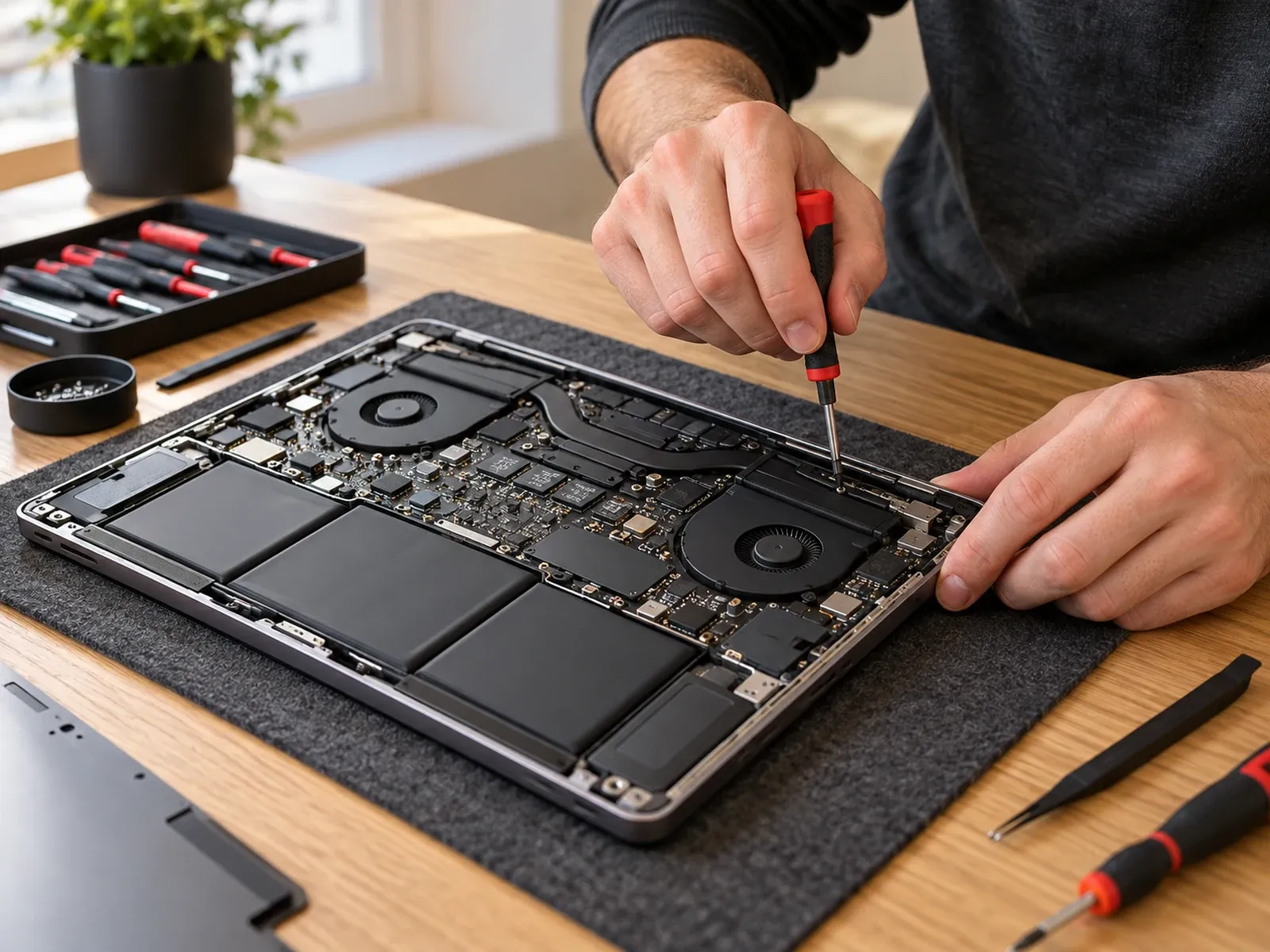
If you’ve worked through every fix and the laptop still shows no signs of life, the problem is likely to be hardware. Common culprits include:
- A failed charger or charging port. It may be loose, damaged or burnt out.
- A dead or faulty battery. See how to check your laptop battery health.
- A failed power button or internal power circuit.
- Liquid damage to the motherboard.
- A display fault, if it runs on an external screen but not its own.
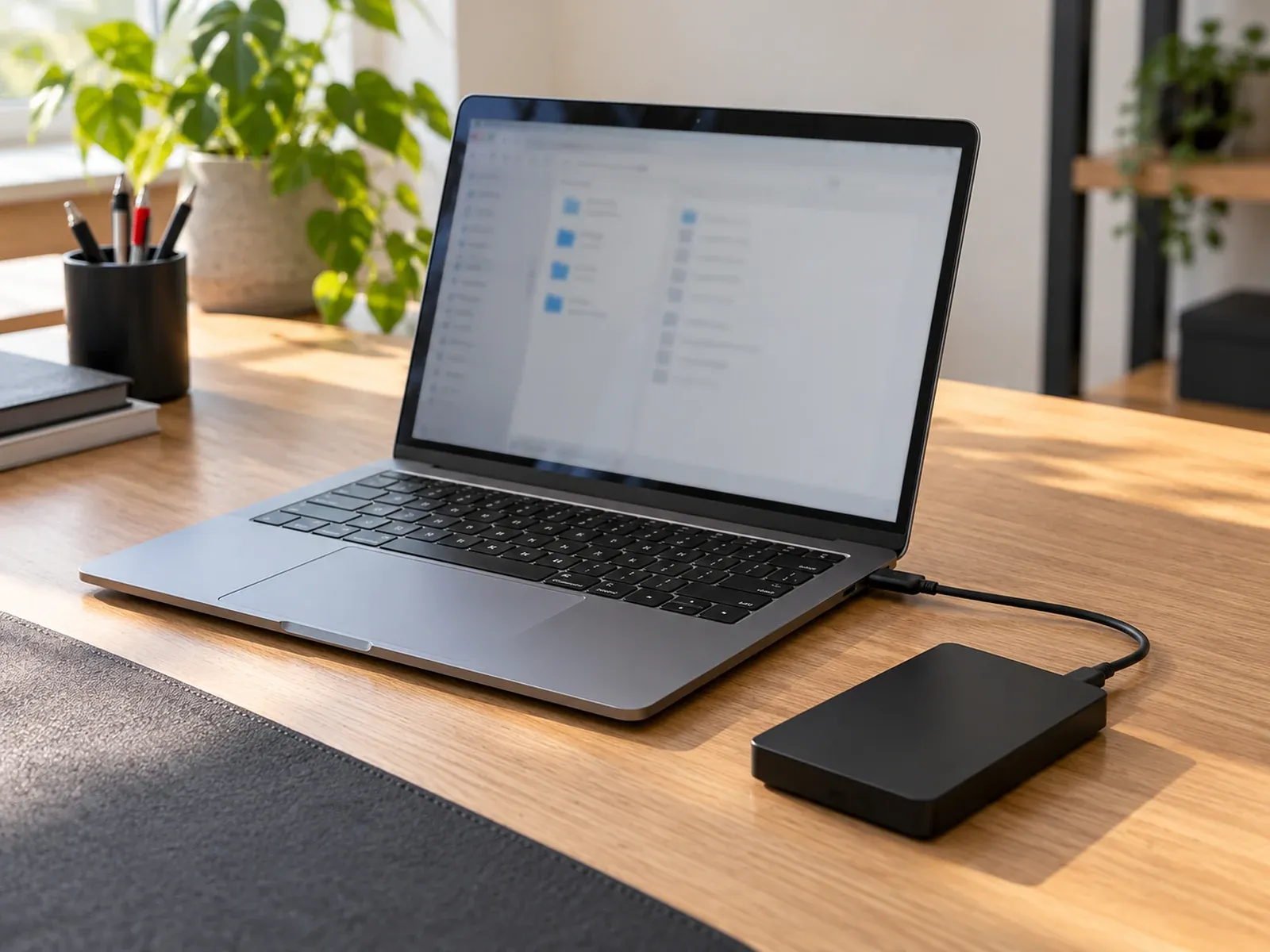
Worried about your files? A laptop that won’t turn on usually still has your data on its drive. In many cases it can be recovered even if the laptop itself can’t be repaired. Read what can and can’t be recovered.
Get it diagnosed in Melbourne
Computer Squad visits homes and workplaces in Melbourne to diagnose and repair laptops, including Dell, HP, Lenovo, ASUS and Acer models. We’ll check the charger, battery, power circuit and screen, explain what we find, and give you a quote before any repair goes ahead.
Request a laptop repair or call 0402 442 841.
If you notice a burning smell, smoke, a swollen battery or a hot spot on the case, stop and unplug the laptop. Don't keep trying to power it on.
Need hands-on help? See Laptop repairs or request a visit.